
📌 Key Takeaways
- You can run AI models locally — fully offline, free, no account — on a normal 8 GB-RAM laptop, no GPU required.
- The best offline AI model in 2026 depends on RAM: Phi-4-mini (4 GB), Gemma 4 E4B (8 GB), Qwen 3.6 / DeepSeek R1 (16 GB+).
- The four easiest tools — Ollama, LM Studio, GPT4All, Jan AI — all run on the same
llama.cppengine, so pick for interface, not speed. - OpenAI now ships open weights (GPT-OSS 20B) — but the ChatGPT, Claude, Grok and Gemini products still can’t run locally.
- Quantized GGUF models cut file size ~60–75% with minor quality loss — this is what makes 8 GB viable.
Introduction
Every prompt you send to a cloud chatbot leaves your machine. According to the Cisco 2025 Data Privacy Benchmark Study, data privacy is now a top concern for most organizations using generative AI — and the reasons are concrete, not abstract. In 2023, Samsung banned internal ChatGPT use after engineers pasted proprietary source code into it (Bloomberg, 2023). To run AI models locally is the clean fix: the model runs on your own CPU or GPU, and after a one-time download, nothing you type ever touches the internet. This guide covers the 8 tools worth using in June 2026, the current models to pair with them, and the hardware you actually need — which is less than you think.
One thing to settle first, because nearly every other guide blurs it: a tool and a model are different things. That distinction shapes the whole article.
What running AI models locally actually means in 2026
Running an AI model locally means the model file lives on your computer and all processing happens on your hardware — no prompt is sent to OpenAI, Google, or Anthropic. You install a tool (software that loads and runs models), then download a model (the actual neural network, like Llama 4 or Gemma 4). The tool is the player; the model is the record. People shop for “the best local AI” as if it’s one product — it’s two decisions.
Here’s the part most articles skip. The popular desktop tools — Ollama, LM Studio, GPT4All, Jan — almost all use the same underlying engine, llama.cpp, and the same model format, GGUF. So switching tools doesn’t meaningfully change inference speed for the same model on the same hardware. What changes is the workflow: a terminal versus a chat window, a built-in document reader versus a raw API. Choose your tool for how you want to work, not for a benchmark — that’s the lever that actually matters.
“Offline” has one asterisk: you need internet once, to download the model (2–40 GB depending on size). After that, airplane mode works indefinitely.
Why run AI models locally? The privacy and cost case
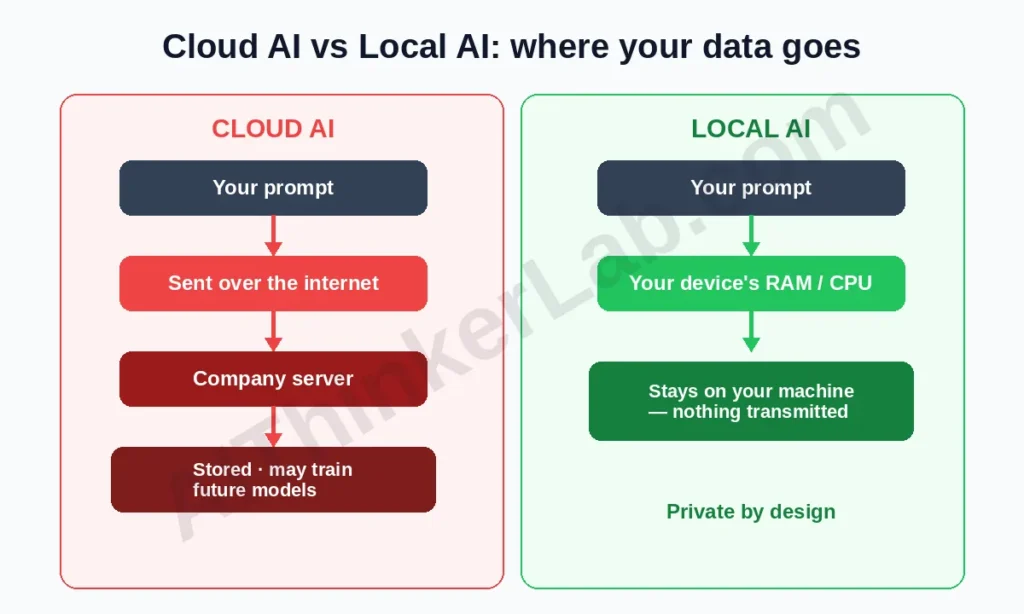
The two honest reasons to run AI locally are privacy and cost; speed and convenience still favor the cloud. On privacy: cloud providers process your prompts on their servers, and retention and training-reuse policies vary and change. For regulated work — HIPAA-bound healthcare, attorney-client material, unreleased code — “the data physically never left the device” is a stronger compliance position than any policy promise. The Samsung leak (Bloomberg, 2023) is the canonical cautionary tale, and Cyberhaven’s research found a measurable share of pasted corporate data is confidential.
On cost: a capable cloud plan runs roughly $20–200/month; a local model costs the electricity to run it. So what’s the catch? Two real ones — you supply the hardware, and the very largest frontier models still beat anything you can run at home. For most everyday tasks, that gap is smaller than the price tag suggests (more on that below).
So who is this genuinely for? Business users handling confidential strategy; developers on proprietary code; healthcare and legal professionals; journalists protecting sources; anyone in a region or network where cloud AI is blocked; and privacy-minded people who’d simply rather not hand their thinking to a corporate log.
Can your computer run AI locally? Hardware and the RAM Ladder
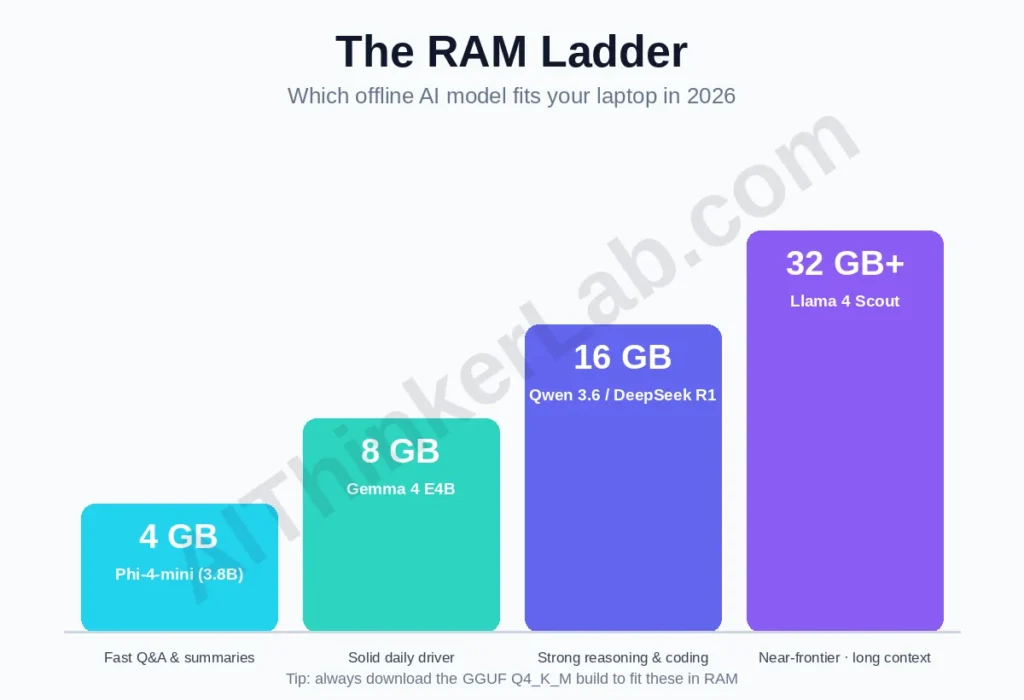
Yes — an 8 GB-RAM laptop with no dedicated GPU runs capable AI models locally in 2026. This is the single most common worry, and it’s mostly unfounded. The trick is quantization: a GGUF Q4_K_M build compresses a model ~60–75% with typically under ~5% quality loss, so a model that needs ~16 GB at full precision fits in roughly 4.7 GB. A GPU makes responses faster, but it’s a luxury, not a requirement.
To skip the guesswork, here’s the RAM Ladder — match your machine to a current model and a realistic expectation:
| Your RAM | Current model to run (Q4) | Realistic experience | Easiest tool |
|---|---|---|---|
| 4 GB | Phi-4-mini (3.8B) | Fast, good for Q&A/summaries; basic reasoning | GPT4All / Ollama |
| 8 GB | Gemma 4 E4B / an 8B-class model | Solid daily driver: writing, coding, analysis | Ollama / LM Studio |
| 16 GB | Qwen 3.6 (smaller variant) / DeepSeek R1 7B | Strong reasoning, coding, longer context | LM Studio / Jan |
| 32 GB+ | Larger Qwen 3.6 / Llama 4 Scout | Near-frontier for many tasks; long context | llama.cpp / Text Gen WebUI |
Apple Silicon deserves a note: on M-series Macs, RAM doubles as GPU memory (unified memory), so a 16 GB Mac often out-runs a 16 GB Windows laptop with a small dedicated GPU for local inference. If you own a recent Mac, you already have good local-AI hardware. You can run a tiny AI model right in your browser
Which offline AI models are best in 2026?
The best offline AI model in 2026 is the one that fits your RAM — and the current generation is Gemma 4, Qwen 3.6, Llama 4, Phi-4 and DeepSeek, not the 2024 models most guides still list. our Qwen 3.6 vs Gemma 4 head-to-head benchmark. This is where staleness bites hardest, so here’s the current open-weight lineup, with what each is actually good at:
| Model | Maker | Min RAM (Q4) | Best at | License note |
|---|---|---|---|---|
| Gemma 4 (E4B / 12B) | ~6–16 GB | Efficiency, vision + tool calling | Gemma Terms (not Apache) | |
| Qwen 3.6 (27B + smaller) | Alibaba | 8 GB → 22 GB VRAM | Coding, multilingual (100+ langs) | Permissive |
| Llama 4 Scout | Meta | 16 GB+ | Very long context | Llama Community License |
| Phi-4-mini (3.8B) | Microsoft | 4 GB | Low-spec machines, speed | MIT |
| DeepSeek R1 (7B) | DeepSeek | 8 GB | Reasoning and math | MIT |
| Mistral Small 4 | Mistral AI | 8 GB+ | Fast instruction-following | Permissive |
| GPT-OSS (20B) | OpenAI | ~16 GB | OpenAI’s own open model, offline | Open weights |
Quick picks by job: best on 8 GB → Gemma 4 E4B; lowest-spec (4 GB) → Phi-4-mini; reasoning/math → DeepSeek R1 7B; coding → Qwen 3.6 (see our Qwen 3.6 vs Gemma 4 head-to-head benchmark); smallest footprint → a small language model that cuts AI bills ~90%. Always download the GGUF Q4_K_M or Q5_K_M build — that’s what keeps these in reach of normal laptops. For a deeper, developer-focused take — ranked by VRAM, license, and real benchmarks — see our dev-focused ranking of the five best local LLM models.
The 8 best tools to run AI models locally (tested)
Ranked easiest to most advanced. Remember the engine point: for the same model and hardware, these perform similarly — the difference is the workflow each gives you.
1. Ollama — the developer standard (easiest CLI)
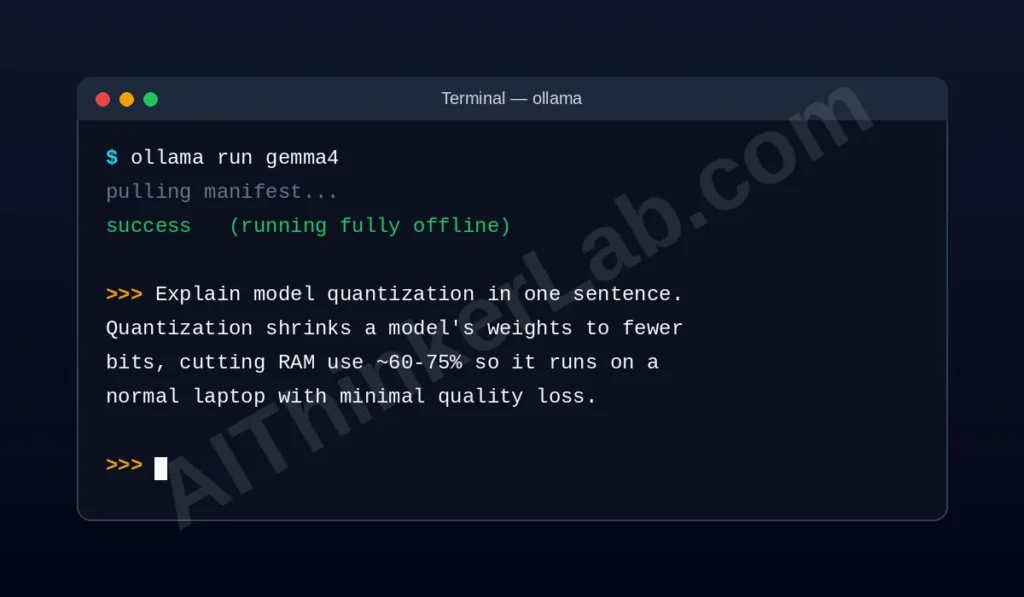
Ollama is the simplest way to run a local model: one terminal command, no config files. It runs as a background server on port 11434 with a clean REST API, holds 4,500+ models, is MIT-licensed, and shipped v0.24.0 on 14 May 2026 with full Gemma 4 support. Setup: install from ollama.com, then ollama run gemma4. Best for: developers and anyone wiring local AI into other software. Trade-off: command-line by default (pair it with a GUI front-end if you want one). Securing a self-hosted Ollama server.
Once a model runs locally, the natural next step is making it answer questions about your own documents — here’s how to build a fully local RAG pipeline, fully offline, no API keys. Build local agentic workflows with Ollama and n8n.
2. LM Studio — the best graphical experience
LM Studio gives you a ChatGPT-style window that runs entirely on your machine. It has the strongest model browser, an OpenAI-compatible server (port 1234), MLX acceleration on Apple Silicon, and MCP tool-calling for agent workflows — which is why many call it the most capable local app in 2026. It’s not open source. Best for: non-technical users who want everything in one window, and Mac users chasing maximum speed.
3. GPT4All — simplest setup + document chat
GPT4All (by Nomic AI) is the lowest-friction entry point, and its LocalDocs feature lets the model answer questions from your own files, fully offline. One installer, offline by default, port 4891. Best for: absolute beginners and anyone doing private document Q&A (researchers, lawyers). Trade-off: less tuning control than Ollama or LM Studio.
4. Jan AI — privacy-first and fully open source
Jan is built privacy-first: zero telemetry, open-source code anyone can audit, no account, chat history stored locally. It offers an OpenAI-compatible API (port 1337) and an optional cloud fallback you control. Best for: journalists, lawyers, and anyone for whom verifiable privacy is non-negotiable. For the Claude-specific version of this question, see can you run Claude locally.
5. AnythingLLM — all-in-one workspace (chat + RAG + agents)
AnythingLLM wraps local chat, document RAG, and simple agents into one workspace, using Ollama or LM Studio as its model backend. Best for: people who want a private “knowledge base + assistant” rather than just a chat box. Trade-off: it leans on a backend tool, so you’re really running two pieces.
6. llama.cpp — the engine itself (fastest, most control)
llama.cpp is the C/C++ engine that powers most tools on this list — running it directly removes the convenience layer for maximum speed and control. It crossed 100K GitHub stars in 2026 for good reason: quantization, server mode, CUDA/Metal/Vulkan acceleration. Best for: developers who want zero overhead. Trade-off: command-line only; the build can be fiddly on Windows.
7. Hugging Face Transformers — the largest model library
If you know basic Python, Hugging Face Transformers opens 500,000+ models you can download once and run offline forever. pip install transformers torch, then a few lines of Python. Best for: Python developers and anyone who’ll eventually fine-tune. Trade-off: higher RAM use than GGUF tools and a steeper start. Here’s exactly how to fine-tune Qwen3 locally with QLoRA
8. Text Generation WebUI (“Oobabooga”) — the power-user all-in-one
Text Generation WebUI is the most feature-rich option: a private ChatGPT-style server with chat modes, an API, extensions, and fine-tuning, supporting GGUF, GPTQ, AWQ and EXL2. Best for: power users who want everything. Trade-off: steeper setup; overkill for casual use. Start with Ollama or LM Studio and graduate here.
Which local AI tool should you choose?
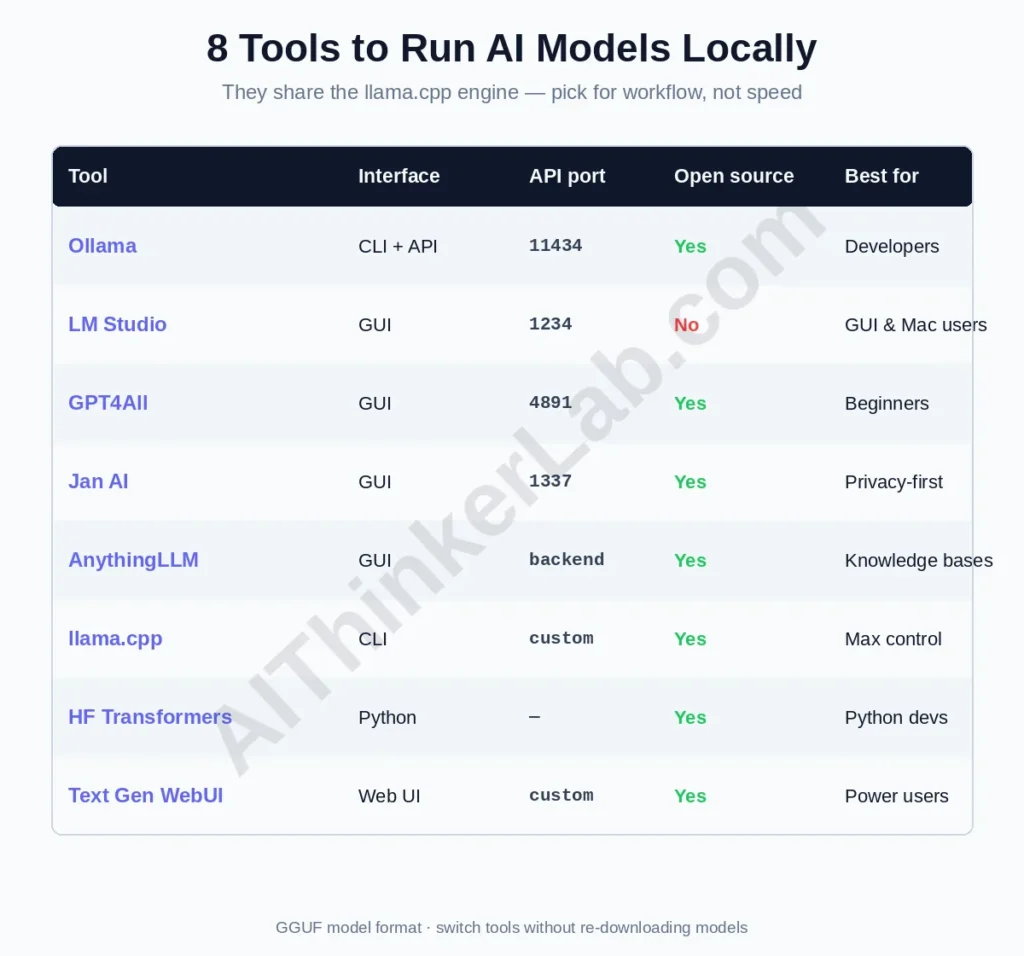
For most people: Ollama if you’re comfortable with a terminal, LM Studio if you want a GUI, GPT4All if you want the simplest possible start, Jan if privacy is the whole point. Because they share an engine, this is a workflow decision, not a performance one. The comparison:
| Tool | Interface | API port | Open source | Stands out for | Best for |
|---|---|---|---|---|---|
| Ollama | CLI + API | 11434 | ✅ (MIT) | Ecosystem standard, 4,500+ models | Developers |
| LM Studio | GUI | 1234 | ❌ | MLX, MCP, best model browser | GUI + Mac users |
| GPT4All | GUI | 4891 | ✅ | LocalDocs document chat | Beginners |
| Jan AI | GUI | 1337 | ✅ | Zero telemetry, auditable | Privacy-first users |
| AnythingLLM | GUI | (backend) | ✅ | Workspace + RAG + agents | Knowledge-base users |
| llama.cpp | CLI | custom | ✅ | Raw speed, full control | Developers |
| HF Transformers | Python | n/a | ✅ | 500K+ models, fine-tuning | Python devs |
| Text Gen WebUI | Web UI | custom | ✅ | Most features, training | Power users |
A genuinely useful move many users land on: run Ollama as a background server and point a GUI (or AnythingLLM) at it — you get the developer-grade engine and the friendly window at the same time.
Can you run ChatGPT, Claude, Grok, or Gemini locally?
No — none of the flagship chatbot products run locally, but the picture changed in 2026: OpenAI now releases open weights. Here’s the model-by-model reality:
- ChatGPT? No. GPT-4o/GPT-5.x are closed. But OpenAI released open-weight GPT-OSS (20B and 120B) —
ollama run gpt-oss:20bruns OpenAI’s own model offline on ~16 GB. The closest behavioral stand-ins are Llama 4 and Qwen 3.6. - Claude? No — Anthropic releases no open weights for Claude. Closest local writing quality: Mistral Small 4 or Qwen 3.6. Community Heretic / abliterated models are Claude-adjacent derivatives on Hugging Face.
- Grok? No — xAI’s Grok is proprietary and tied to X. Its real edge (live X data) can’t be replicated offline by definition; for its reasoning, run DeepSeek R1 locally.
- Gemini? Partially. Gemini itself is cloud-only, but Google open-weights the Gemma 4 family —
ollama run gemma4— same research lineage, built for consumer hardware. - DeepSeek? Yes. DeepSeek open-weights R1 and V4; see our DeepSeek V3 production setup guide.
So “run ChatGPT locally” is the wrong goal. “Run an open model that does the same job, privately” is the achievable — and now very good — one.
Is local AI actually as good as the cloud?
For the tasks people actually run locally, a 2026 mid-size open model is at functional parity — the “85–90% of ChatGPT” framing measures the wrong thing. That number comes from broad benchmarks that lean heavily on edge cases: competition math, multi-step agentic reasoning, niche trivia. But nobody installs a local model to win a math olympiad. They install it to draft, summarize, rewrite, code, and answer questions about private documents — and on those, the difference between a current 8–14B open model and a frontier cloud model is hard to feel in daily use.
Here’s the contrarian part: your real quality ceiling locally isn’t the cloud-vs-local gap — it’s your RAM and quantization choice. A poorly chosen 70B model crawling in swap will feel worse than a well-matched 8B model running smoothly. Pick the right rung on the RAM Ladder and the “90%” stops being a limitation and starts being irrelevant for the work in front of you. Where the cloud still clearly wins: the absolute frontier of reasoning, and anything needing live internet data.
5 mistakes that quietly wreck local AI performance
- Downloading too large a model. A 70B model on 16 GB RAM will swap to disk and crawl. Start at 7–8B; bigger isn’t better when it doesn’t fit.
- Ignoring quantization. Always grab the GGUF Q4_K_M/Q5_K_M build — full-precision weights waste RAM for marginal gains.
- Leaving the GPU off. If you have NVIDIA (CUDA) or Apple Silicon (Metal), confirm acceleration is active; CPU-only is fine but noticeably slower.
- Running everything at once. Each loaded model eats RAM. Run one; close the browser tabs competing for memory.
- Never updating. New model generations land monthly — the leap from Gemma 2 to Gemma 4, or Llama 3 to Llama 4, is large. Set a monthly check.
The bottom line
Running AI locally in 2026 isn’t a hobbyist stunt — it’s a practical, free way to keep private work private. Make two clean decisions and you’re done: pick a tool for the workflow you want (Ollama for code, LM Studio for a window, GPT4All for documents, Jan for airtight privacy), then pick a model that fits your RAM (Gemma 4, Qwen 3.6, Phi-4-mini, DeepSeek R1). Ignore the “is it as good as ChatGPT” anxiety — for the work you’ll actually do offline, the current generation is more than enough. Start with ollama run gemma4, and the next time you’re tempted to paste something sensitive into a cloud chatbot, you’ll have a private alternative already running.
Which tool and model did you land on? Tell us your setup and hardware in the comments.
Sources
- OpenAI GPT-OSS announcement — https://openai.com/index/introducing-gpt-oss/?utm_source=chatgpt.com
- Ollama — official site & releases: https://ollama.com/
- LM Studio — https://lmstudio.ai/
- Jan AI — https://jan.ai/
- GPT4All (Nomic AI) — https://gpt4all.io/
- Hugging Face — https://huggingface.co/
- Cisco 2025 Data Privacy Benchmark Study — https://www.cisco.com/c/en/us/about/trust-center/data-privacy-benchmark-study.html
- Cyberhaven research on pasted corporate data — https://www.cyberhaven.com/blog/4-2-of-workers-have-pasted-company-data-into-chatgpt
- Google Gemma — https://ai.google.dev/gemma
Excellent article. Keep writing such kind of information on your site.
Im really impressed by your blog.
Hello there, You have performed a great job. I will definitely
digg it and for my part suggest to my friends. I’m sure they will be
benefited from this site.
Hi colleagues, nice piece of writing and nice arguments commented at
this place, I am truly enjoying by these.
Incredible points. Solid arguments. Keep up the amazing effort.
Thank you
Everything is very open with a really clear clarification of
the challenges. It was definitely informative. Your site is very useful.
Many thanks for sharing!
Thank you so much for your kind words! 😊 Glad you found the content helpful and informative. Your support means a lot! 🙌
I do not know if it’s just me or if everybody else
encountering problems with your blog. It appears like some
of the written text within your posts are running off the screen. Can somebody else please comment and let me know if this is happening to them as well?
This may be a problem with my internet browser because I’ve had
this happen before. Kudos
Thanks for the bringing into notice, Its fixed now
Nice summary with some significant holes in its written narrative. Many key characteristics of the various AI LLMs are not even touched on. Stuff like guardrails and completeness and accuracy of answers. What about hallucinations? Also, you’ve heard of Linux, right? Linux isn’t just a “good idea,” it’s a solid OS with excellent performance. Linux support?
I enjoy your rendering these details for individuals trying to get more
information on topics like this. Your weblog was well-written and well investigated, and that is very much treasured.
I am always seeking for new blogs to follow and browse frequently.
I was suggested this website by my cousin. I’m not sure whether this post is
written by him as nobody else know such detailed about my problem.
You’re amazing! Thanks!
I have read so many articles about the blogger
lovers except this post is actually a nice paragraph, keep
it up.
Really appreciated the clear RAM-based model recommendations — especially highlighting Phi-4-mini for 4 GB systems, since that’s exactly the setup I’ve been testing on. It’s refreshing to see quantization trade-offs explained so honestly, not just glossed over as ‘negligible’. Makes choosing a starting point feel grounded, not guesswork.