TL;DR — Key Takeaways
- Ollama binds to
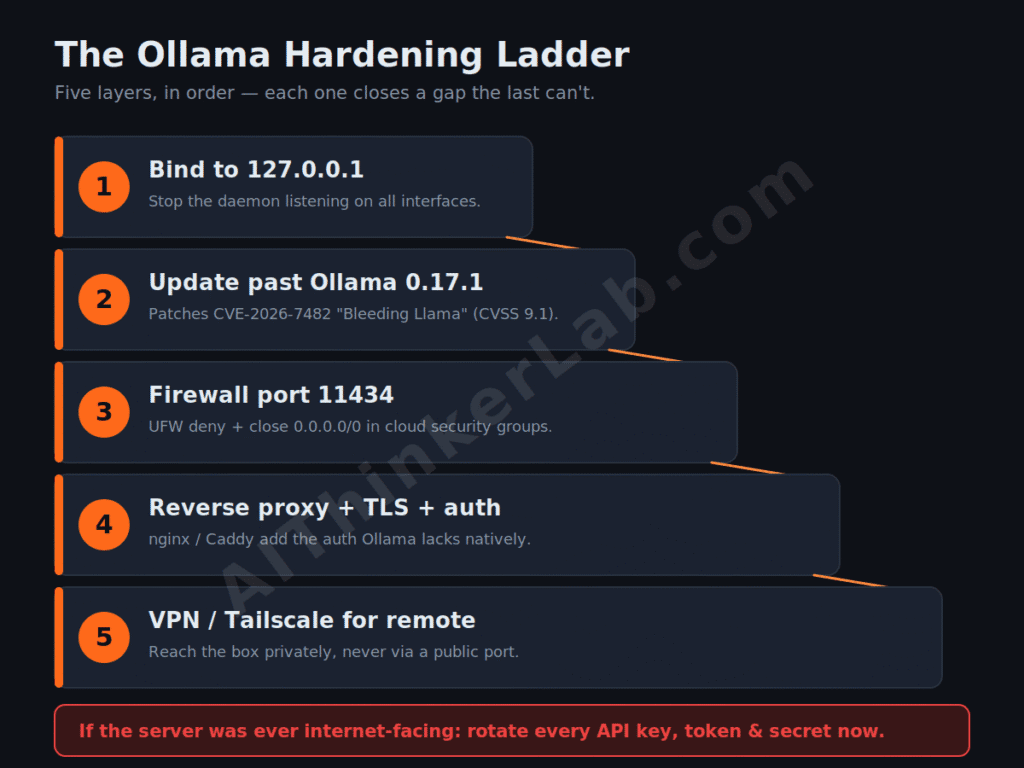
127.0.0.1:11434by default and ships with no password. The 175,000 exposed servers SentinelLABS and Censys found in January 2026 weren’t hacked — owners changedOLLAMA_HOSTto0.0.0.0and forgot the firewall. - An open Ollama box leaks more than GPU time. CVE-2026-7482 (“Bleeding Llama,” CVSS 9.1) let unauthenticated attackers read process memory — system prompts, API keys, env vars — from ~300,000 servers until the 0.17.1 patch (Cyera, 2026).
- Fix it in this order: Bind → Patch → Firewall → Proxy → Tunnel. Skipping the localhost bind and jumping straight to nginx leaves the port still listening underneath.
- Tool-calling makes exposure worse. Roughly 48% of exposed hosts could execute code or call external APIs (SentinelLABS/Censys, 2026) — that turns a leak into a foothold. Gate agent tool calls with n8n’s human-approval step.
- If your server was ever internet-facing, rotate your secrets. Assume prompts and credentials in memory were readable.
- For remote access, a VPN or Tailscale beats a public port every time. Most self-hosters never need 11434 open to the world.
Introduction
In January 2026, a joint SentinelLABS and Censys investigation mapped roughly 175,000 publicly reachable Ollama servers across 130 countries — most of them sitting on the open internet with no authentication at all. That number reframes ollama server security from a niche worry into a default-config problem, because almost none of those boxes were “hacked.” Their owners flipped one environment variable and skipped a firewall rule.
Here’s the part nobody really tells you: an exposed Ollama instance isn’t just free GPU for strangers. Months after that mapping, Cyera disclosed CVE-2026-7482 — nicknamed Bleeding Llama — which let an unauthenticated request read the server’s process memory. Prompts, environment variables, API keys. Gone with three HTTP calls.
That exposed process memory included system prompts and API keys — a pattern that maps directly onto system prompt leakage and five other 2026 risks OWASP now tracks separately.
This guide is defensive. Nothing here helps you find someone else’s server — every command locks down your own. Quick disambiguation before we start: “exposed” doesn’t mean “breached,” and binding to 0.0.0.0 isn’t a bug in Ollama. It’s a choice. Let’s make a better one.
Why Did 175,000 Ollama Servers End Up Exposed?
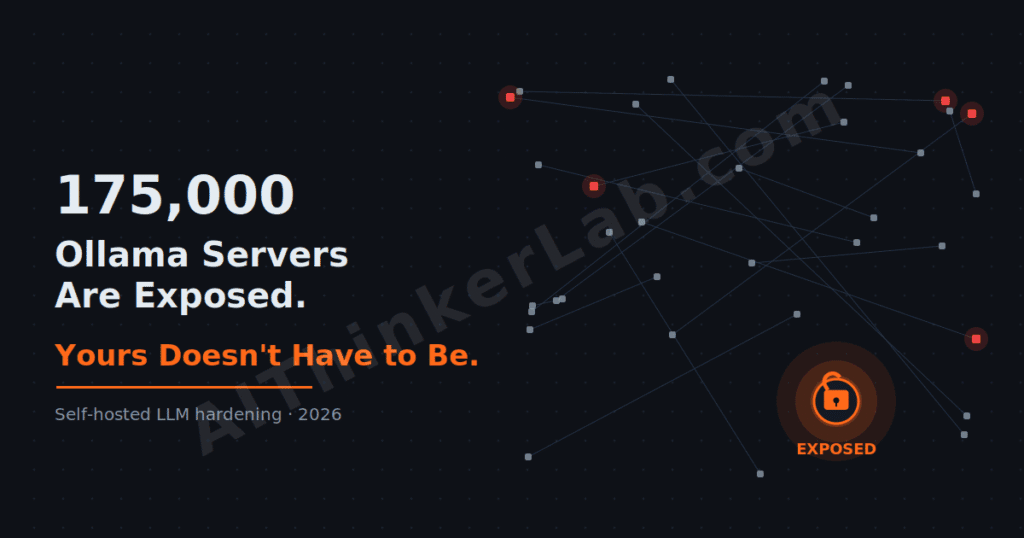
Most exposed Ollama servers are exposed by accident, not by attack. Ollama listens only on localhost (127.0.0.1:11434) out of the box, but the moment a developer sets OLLAMA_HOST=0.0.0.0 to let another machine connect — and doesn’t add a firewall — the REST API becomes reachable by anyone, with no password required (SentinelLABS/Censys, 2026).
That single change explains the scale. Ollama crossed 170,000 GitHub stars and 100 million Docker pulls (Cyera, 2026), and a lot of that growth came from people deploying fast and securing later. Cisco Talos, scanning with Shodan in September 2025, found more than 1,100 open instances and called it plainly: this reflects neglect of access control, authentication and network isolation in AI deployments. Trend Micro had earlier counted 10,000+ with no auth layer.
And the exposure isn’t passive. Pillar Security documented an active LLMjacking operation — Operation Bizarre Bazaar — that scans for open instances, validates them, and resells the access on a gateway marketplace. So what does that mean for you? If your box is reachable, it’s not a question of whether it gets found. Automated scanners already did. How Hackers Use ChatGPT and Claude to Build Cyberattacks?
Quick read on the numbers: ~30% of exposed hosts were in China, with the U.S., Germany, France, South Korea, and India next (SentinelLABS/Censys, 2026). This is a global misconfiguration pattern, not a regional one.
Tip 1 — Bind Ollama to Localhost, Not 0.0.0.0
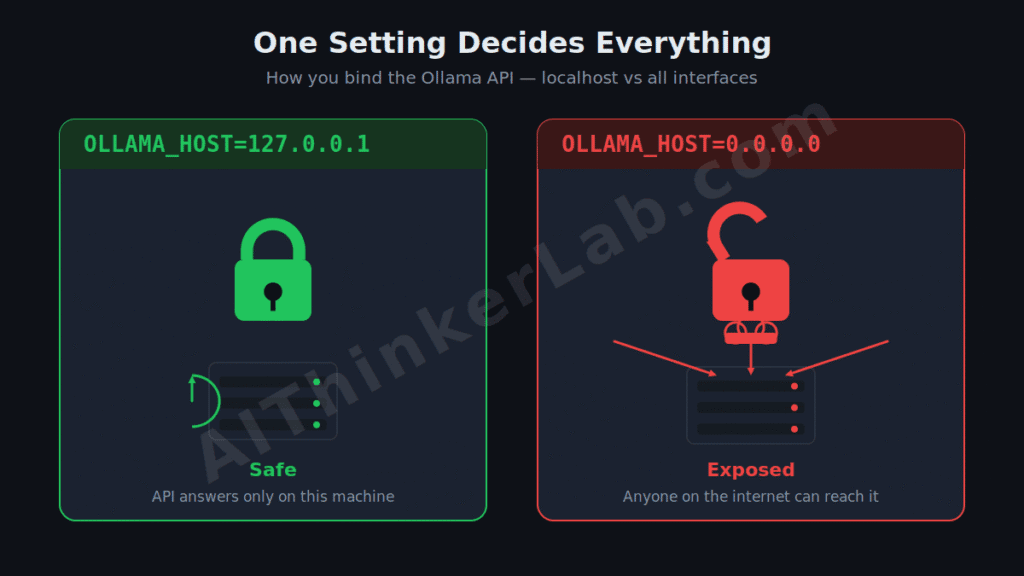
The single most important fix is to stop Ollama from listening on every network interface. Set OLLAMA_HOST=127.0.0.1:11434 so the API answers only on the local machine, then route any external app through a controlled intermediary. If you only call Ollama from the same box — which covers most n8n and IDE setups — this one change is the entire solution.
On Linux with systemd, edit the service (systemctl edit ollama.service) and set the variable under [Service]:
[Service]
Environment="OLLAMA_HOST=127.0.0.1:11434"
Then systemctl daemon-reload && systemctl restart ollama. On macOS, use launchctl setenv OLLAMA_HOST 127.0.0.1:11434 and restart the app; on Windows, set OLLAMA_HOST in your account’s environment variables and restart Ollama from the Start menu.
Here’s the contrarian bit. Most guides open with “put nginx in front of it.” That advice is dated as a first step. If the daemon is still bound to 0.0.0.0, your shiny reverse proxy is a fig leaf — the raw port keeps listening underneath, and anyone who hits the IP directly skips the proxy entirely. Bind first. Proxy later.
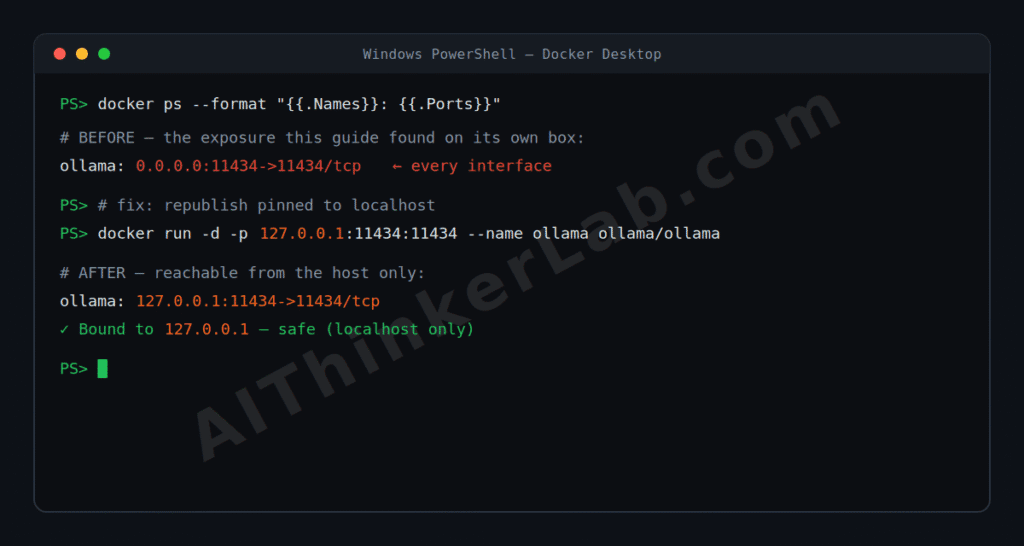
A note for Docker users — and a real example. If you run Ollama in a container, don’t check the binding inside it; the process binds to 0.0.0.0 in there by design, and that’s fine. What matters is the address Docker publishes on the host. Check it from the host with:
docker ps --format "{{.Names}}: {{.Ports}}"I ran exactly this on my own Windows + Docker Desktop setup while writing this. The Ports column came back as:
ollama: 0.0.0.0:11434->11434/tcpThat 0.0.0.0 — which is what a bare -p 11434:11434 produces — meant the API was published to every interface on the host, no password in front of it. The fix was a one-line change to pin the publish to localhost:
-p 127.0.0.1:11434:11434After recreating the container, the same command confirmed it:
ollama: 127.0.0.1:11434->11434/tcpReachable from the host only. The lesson that surprised me: I’d never touched OLLAMA_HOST — the exposure came entirely from Docker’s port-publish shorthand, which is exactly the trap that catches a lot of self-hosters. On a bare-metal install you’d verify the same thing with ss -tlnp | grep 11434 (or netstat -ano | findstr 11434 on Windows) and look for 127.0.0.1, not 0.0.0.0, in front of the port.
Tip 2 — Patch Past “Bleeding Llama” (and Tame Windows Auto-Update)
CVE-2026-7482 — “Bleeding Llama” — was a heap out-of-bounds read in Ollama’s GGUF model loader, rated CVSS 9.1, and it let unauthenticated attackers leak the server’s process memory before the fix landed in Ollama 0.17.1 (Cyera/NVD, 2026). If you’re on the current v0.30.x line, you’re past it — but only if you actually updated. A surprising number of exposed boxes still run pre-0.17 builds.
The mechanism is worth understanding, because it changes how you think about exposure. A crafted GGUF file declared a tensor far larger than its real data, forcing Ollama to read past the buffer and scoop up nearby memory — system prompts, user messages, environment variables. Cyera’s guidance was blunt: assume environment variables and secrets in memory may be compromised if the server was internet-accessible.
Windows users have a second front. Striga disclosed flaws in Ollama’s Windows updater (including CVE-2026-42249, a CVSS 7.7 path traversal) that could be chained into persistent code execution, with AutoUpdateEnabled on by default (Striga, 2026). The takeaway: update through the official channel, verify the version after, and don’t assume “auto-update” equals “secure.”
Tip 3 — Firewall Port 11434 and Fix Your Cloud Security Groups
A firewall is your second layer even after you bind to localhost — defense in depth means not relying on any single control. On a Linux host, block the Ollama port from the outside and open only what your reverse proxy needs:
sudo ufw deny 11434
sudo ufw allow 443/tcp        # HTTPS for your proxy
sudo ufw allow 22/tcp         # SSH for admin
sudo ufw enable
If a specific internal subnet genuinely needs direct access, scope it tightly instead of opening the port to all:
sudo ufw allow from 192.168.1.0/24 to any port 11434
sudo ufw deny 11434
The cloud-specific trap catches more people than the OS firewall does. On AWS, GCP, Azure, or Oracle, a security-group rule allowing inbound 0.0.0.0/0 to port 11434 exposes the API to the entire internet regardless of what UFW says — this is the most common single misconfiguration behind the exposure numbers. Check your inbound rules. If 11434 is open to 0.0.0.0/0, that’s the hole.
Why bother when you’ve already bound to localhost? Because configs drift. Someone redeploys, a container re-exposes the port, an OLLAMA_HOST sneaks back to 0.0.0.0. The firewall catches the mistake the bind setting can’t.
Tip 4 — Put a Reverse Proxy With Auth and TLS in Front
Ollama’s local API has no built-in authentication — the official docs confirm that local access to http://localhost:11434 requires no credentials (Ollama, 2026). So when you do need network access, you add the missing auth layer yourself with a reverse proxy. nginx or Caddy in front of Ollama gives you three things the daemon won’t: identity (Basic Auth, an API key header, or OAuth), encryption (HTTPS/TLS instead of plaintext), and a single controlled entry point.
A minimal nginx pattern terminates TLS, checks credentials, and forwards only authenticated traffic to the loopback address:
location / {
    auth_basic "Ollama";
    auth_basic_user_file /etc/nginx/.htpasswd;
    proxy_pass http://127.0.0.1:11434;
}
Tools that speak to Ollama already support this. n8n’s Ollama credential, for example, accepts a Base URL plus an optional API key sent as a Bearer token — which is exactly how you’d point it at an authenticated proxy instead of a raw port. Caddy is the quicker route if you want automatic HTTPS certificates without wrestling with certbot.
One caution so this doesn’t become security theater: a proxy in front of a daemon still bound to 0.0.0.0 protects nothing. Tip 1 first, then this. The proxy is the front door — but only if the back door is locked.
Tip 5 — Reach Remote Servers Over a VPN, Not the Open Internet
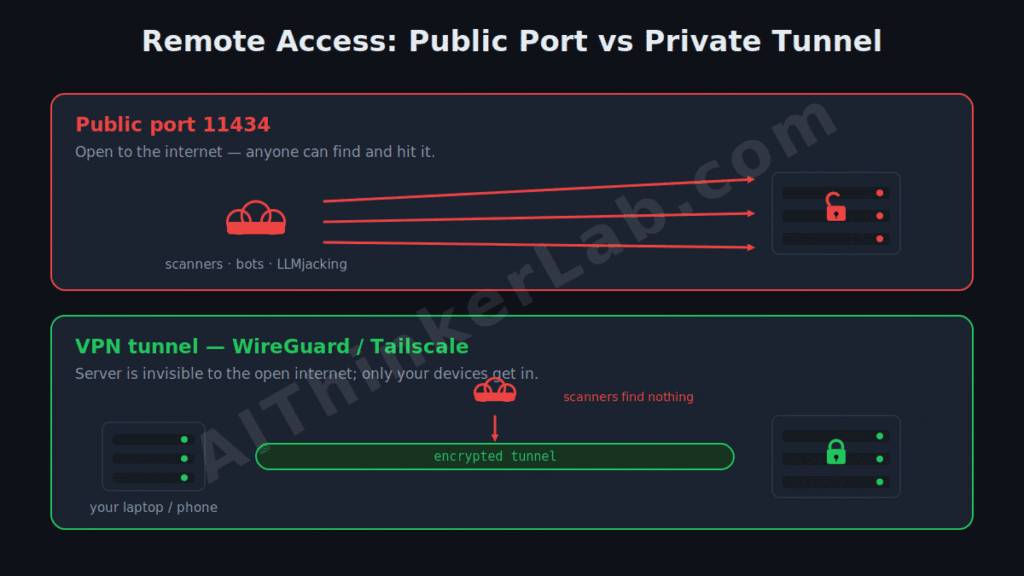
For most self-hosters, the honest answer is that you never need port 11434 open to the public at all. If you’re reaching your Ollama box from a laptop, a phone, or a branch office, a private tunnel beats a public endpoint on every axis — security, simplicity, and cost. WireGuard, Tailscale, or a plain VLAN puts the server on a network only your authorized devices can see.
Think of it as removing the server from the internet’s address book entirely. Instead of “expose 443 and hope the auth holds,” you get “the box doesn’t answer anyone who isn’t already inside the tunnel.” For multi-site teams, that means WireGuard or OpenVPN between locations, a dedicated VLAN for the AI server, and — if you want the stricter posture — a zero-trust model where every request authenticates even from inside the network.
Tailscale deserves a specific mention for solo builders: it’s roughly a ten-minute setup, needs no port-forwarding, and gives each device a stable private address. The result is that your Ollama API is reachable from your gear and invisible to the scanners running Operation Bizarre Bazaar. That’s a better default than any public-facing config.
Tip 6 — Treat Prompts, Secrets, and Tool-Calling as Attack Surface
The risk that gets underestimated isn’t compute theft — it’s data and code. Nearly 48% of exposed Ollama hosts advertise tool-calling, meaning they can execute code, hit APIs, and touch other systems (SentinelLABS/Censys, 2026). On an open box, that converts a chatbot into a launch point. So harden what flows through Ollama, not just the port.
Three concrete moves. First, keep secrets out of the environment of any host that’s been or might be exposed — Bleeding Llama proved env vars are readable from memory, so a leaked OPENAI_API_KEY becomes someone else’s bill. Second, if your workflow doesn’t need tool-calling, don’t enable it; scope tools to the minimum, and never wire an exposed model directly to shell access or production credentials. Third — and this is non-negotiable — if your server was internet-facing at any point, rotate API keys, tokens, and credentials now and assume prior prompts were readable.
There’s a quieter leak, too: model names. The /api/tags endpoint lists installed models, and custom names like acme-internal-support-bot quietly reveal what you’re building. Naming matters more than it looks.
Tip 7 — Monitor, Rate-Limit, and Audit Your Own Exposure
Hardening isn’t a one-time task — configs drift, containers redeploy, and a setting you fixed in March quietly reverts in June. Build a habit of checking. Rate-limit at your reverse proxy so a single client can’t run your GPU at 100% indefinitely (attackers favor long, expensive prompts precisely because they tie up resources). Log requests so abnormal traffic — a flood of /api/generate calls at 3 a.m. — actually shows up somewhere you’ll see it.
Then audit your own assets on a schedule. From the server itself, ss -tlnp | grep 11434 tells you what the daemon is bound to. From outside your own network, confirm the port doesn’t answer. The cost of skipping this is real: one security writeup traced a $12,000 cloud-compute spike to a single exposed endpoint being run by outsiders (SecureIoT, 2026) — a single anecdote, but a believable one given GPU pricing.
The “so what” here is simple. Monitoring turns a silent, billable, data-leaking exposure into something you catch in hours instead of discovering on an invoice.
Is It Ever Safe to Expose Ollama to the Internet?
Exposing Ollama to the public internet is safe only when you’ve added the authentication, encryption, and network controls Ollama doesn’t provide itself — a reverse proxy with auth and TLS, a firewall scoped to known IPs, a patched build past 0.17.1, and ideally a VPN in front. With none of those, a public Ollama instance is an open, unauthenticated API by definition (Ollama docs, 2026).
For the large majority of self-hosters, though, the better answer is: don’t. The whole appeal of running models locally — privacy, no per-token bill, offline capability — evaporates the moment your box becomes someone else’s free, leaky inference service. If you want the local-AI benefits without the exposure tax, our guide to running AI models locally and privately covers the offline-first setup, and our breakdown of self-hosted AI security lessons from the Lovable incident shows how fast a “just ship it” deployment turns into a liability.
Locked down and want to put that private box to work? Here’s how to build a local RAG pipeline on it so a local model can answer questions about your own files.
The One Setting That Matters Most
Strip everything else away and ollama server security comes down to a single discipline: never let the daemon listen on a public interface without auth in front of it. Bind to 127.0.0.1, patch past 0.17.1, firewall the port, and reach remote boxes through a tunnel. Do those four and you’ve closed the gap that put 175,000 servers on the open internet.
My recommendation for solo builders and small teams is unglamorous on purpose: keep Ollama on localhost, use Tailscale for the rare remote case, and audit your own port quarterly. You give up nothing — you still get private, offline, no-per-token-bill inference — and you stop being a line item in someone’s LLMjacking spreadsheet. The exposure wave isn’t slowing. The fix has been one environment variable the whole time.
Sources
- Ollama — Authentication (official API docs): https://docs.ollama.com/api/authentication
- Ollama — Releases (version reference): https://github.com/ollama/ollama/releases
- NVD / The Hacker News — CVE-2026-7482 “Bleeding Llama” out-of-bounds read: https://thehackernews.com/2026/05/ollama-out-of-bounds-read-vulnerability.html
- CSO Online — Cyera disclosure and remediation guidance: https://www.csoonline.com/article/4168584/ollama-vulnerability-highlights-danger-of-ai-frameworks-with-unrestricted-access.html
- The Hacker News — SentinelLABS + Censys: 175,000 exposed Ollama servers / Operation Bizarre Bazaar: https://thehackernews.com/2026/01/researchers-find-175000-publicly.html
- TechRadar — exposure analysis and localhost-bind fix: https://www.techradar.com/pro/security/over-175-000-publicly-exposed-ollama-ai-servers-discovered-worldwide-so-fix-now
- BankInfoSecurity — Cisco Talos Shodan findings: https://www.bankinfosecurity.com/exposed-llm-servers-expose-ollama-risks-a-29354
- Indusface — exposed-server risks and mitigations: https://www.indusface.com/blog/exposed-ollama-servers-llm-security-risks/